You can find more detailed guidance on the use of the Transitional Registry on the Commission’s website.
- Transitional CBAM Registry user manual for Declarants on the Commission’s website
- CBAM Webinar: Transitional Registry – Traders’ Info session
If you receive error messages when submitting the report, you can find the messages and guidance on what to do on the Commission’s website, under “Useful documents” in the document “CBAM Quarterly Report structure (XLS format)” on the “Error Messages Glossary” tab.
You can change the Transitional Registry language in the “Preferences”, via the profile icon in the upper right corner. Choose the language from the “Preferences” menu.
The Transitional Registry has session timeout. A session timer displayed in the top left corner shows the remaining time before automatic logout.
Please note: In the CBAM Transitional Registry, the fields marked with a red asterisk are mandatory.
2. Start completing the report
3. Add the goods and the emissions information
6. Making subsequent modifications to the report
7. Proceed as follows if you have not obtained actual emissions data for CBAM reporting
1. Prefilling details
In the CBAM Transitional Registry, you can save e.g. the following details for reports.
Your contact details
- On the front page, under “My Profile Information”, click on “more”
- Under “Contact Details”, click on the button “Edit”
- Type your contact details in the following fields:
- Contact Person Full name
- Phone
- E-mail address
- Click on “Save”
Adding an operator
‘Operator’ means any person who operates or controls an installation in a third country.
Prefilling the operator details in the registry is not mandatory, but it can speed up the completion of a report, because the details will be available in the registry. If you want to add operators, do this:
- On the front page, under “Operators”, click on “more”
- Click on the blue button “Create an Operator”
- Enter the operator details in the fields below.
- In the field “Operator ID”, you can type a chosen combination of numbers and letters
- Click on “Create”
Adding installations
‘Installation’ means a stationary technical unit where a production process is carried out.
Prefilling the details of installations is not mandatory, but it can speed up the completion of a report, because the details will be available in the registry. If you want to add installations, do this:
- On the front page, in the section “Installations”, click on “more”
- Click on the blue button “Create an Installation”
- Fill in the installation details in the fields below
- In the field “Installation ID”, you can type a chosen combination of numbers and letters
- Click on “Search in My operator registry”
.jpg/af1865f7-c3af-9204-eadd-93db60591a50?t=1740055111485)
- Select the name of the installation operator and click on “Ok”
- Click on “Create” in the top right corner
2. Start completing the report
- On the front page of the Transitional Registry, under “My Quarterly Reports”, click on “more”
- Create a report:
- If you wish to create a new report, click on “Create” next to the appropriate reporting period.
- If you have an XML file, click on “Upload” next to the appropriate reporting period.
- If you have submitted a report for an earlier reporting period, you can use the previous report as a template. In that case, start completing the report by clicking on “Create using Previous Report” next to the appropriate reporting period.
- Choose “Header info” on the left side of the page
Choose the “Reporting declarant” tab
- Fill in the contact information.
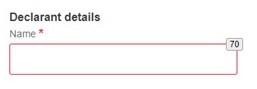
- If you are submitting a report on behalf of a company, fill in the details of the company on the tab. Enter the company’s name (or if needed, replace you name with the company’s name) under “Name”.
- Under “Role”, choose “Importer for all Goods”
- Fill in your address details under “Address”
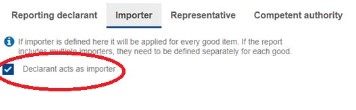
- Choose the “Importer” tab
- Tick the box “Declarant acts as importer” if all the goods you are reporting have the same importer. In that case, the program will automatically use this information for each set of goods.
- Don’t fill in the “Indirect Customs Representative” tab, if you aren’t an indirect customs representative.
- Note: Indirect customs representative means any operator appointed by another operator to carry out the acts and formalities required under the customs legislation in their dealings with customs authorities. The customs representative can be e.g. a forwarding agency.
- If you act as an indirect customs representative:
- On the “Reporting declarant” tab, under “Role”, choose the appropriate alternative.
- Choose the “Indirect Customs Representative” tab.
- If you have acted as an indirect customs representative for all the imports you have reported, the box “Declarant acts as representative” should be ticked.
3. Add the goods and their emissions information
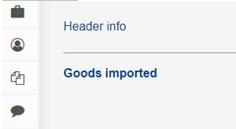
- Select “Goods imported” on the left side of the page
- Click on the blue button “Add a good”
- For the report, you need the first eight digits of the commodity code, the first six being the HS code and the next two the CN code.
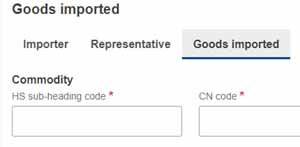
- Under “Commodity”, enter the first six digits of the commodity code in the field “HS sub-heading code”. Choose the appropriate commodity code from the menu that opens.
- Under “CN code”, choose the next two digits of the commodity code.
- The field “Description of goods” is automatically filled in. The description can be edited.
- Under “Country of origin”, choose the code for the country of origin
- Continue in section “1. Requested procedure:”
- Under “Area of Import”, choose “EU – EU by means of Customs import declaration”, if the goods have been released for free circulation with a customs declaration
- In the field “Requested procedure”, choose the used customs procedure
- For example, 40 – release for free circulation
- (If needed, under “Previous procedure”, choose the appropriate previous customs procedure.)
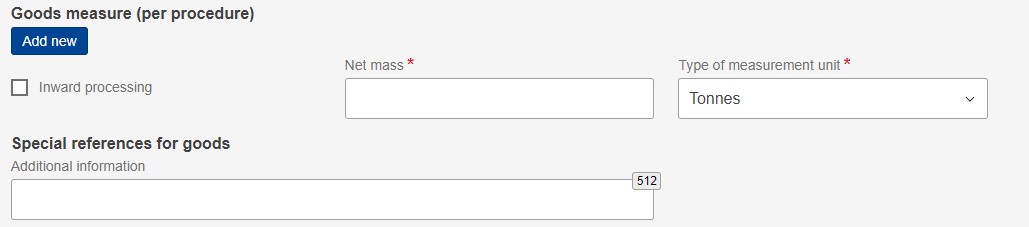
- Under “Goods measure (per procedure)”, in the field “Net mass”, enter the net mass of the imported goods in tonnes.
- Under “Type of measurement unit”, select “Tonnes” as the measurement unit.
- If you wish, you can provide additional information on the goods under “Special references for goods”.
- In the case of the inward processing procedure, proceed as follows:
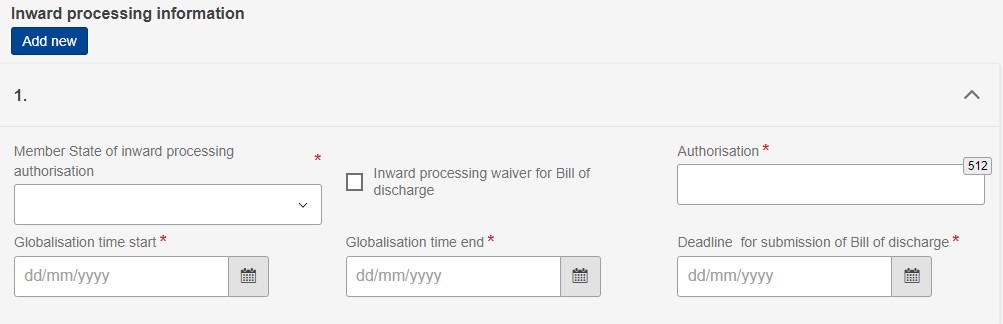
- Add the required information under “Inward processing information”.
- Under “Goods measure (per procedure)”, the box “Inward processing” refers to the following:
- If you have released CBAM goods for free circulation, don’t tick the box; provide the net mass of the goods.
- If you have used CBAM goods to produce the goods released for free circulation, tick the box and provide the net mass of the CBAM goods used to produce the goods.
- In the case of the inward processing procedure, the bill of discharge must be uploaded as an attachment to the report.
- In the menu on the left, click on the button “Add an emission”.
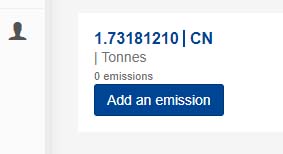
- Under “Country of production”, choose the country of production.
- Add the operator details by clicking on “Add new” under “The company name of the installation”.
- You can add the details manually.
- If you have added the operator details in advance, click on “Search in My operator registry”. From the registry, select the operator you have added and click on “OK”. The operator details are filled in automatically.
- If the operator has already added the details to the CBAM Registry via the portal for non-EU installation operators, read the instructions in section 8.
.jpg/cd7bbc29-0ab1-e611-2fb0-a13a9cf95a38?t=1740055113212)
- Add the installation details by clicking on “Add new” under “Installation”.
- You can add the details manually.
- If you have added the installation details in advance, click on “Search in My Installation Registry”. From the registry, select the installation you have added and click on “OK”. The installation details are filled in automatically.
- If the operator has already added the details to the CBAM Registry via the portal for non-EU installation operators, read the instructions in section 8.
- Choose the “Parameters” tab.
.jpg/52f3843c-1cf5-a88a-45ad-fda0f1e8184a?t=1740055114589)
- The details filled in on this tab are determined by the commodity code and the production method.
- Under “Production method”, provide the required details.
- If you use emissions data obtained via the portal for non-EU installation operators, you must select the correct production method. You can obtain this information from the producer of the goods.
- Under “Direct Emissions qualifying parameters” and “Indirect Emissions qualifying parameters”, add the details of the specific parameters used for determining the embedded emissions.
- If you need more information, see Commission Implementing Regulation (EU) 2023/1773: Article 3, Annex I “Information to be submitted in the CBAM reports” and section 2 “Sector-specific parameters to be included in the communication” of Annex IV.
- Choose the “Emissions” tab
.jpg/50450c7a-e964-d7b3-bb07-071f5b106d35?t=1740055115884)
- Under “Goods measure (produced)”, in the field “Net mass”, enter the net mass of the goods in tonnes.
- Under “Type of measurement unit”, select “Tonnes” as the measurement unit.
- Enter the details of direct embedded emissions:
- If you use emissions data obtained via the portal for non-EU installation operators, the other fields on the tab will be filled in automatically. If you wish to use operator and installation details without emissions data, click on “Edit” in the top right corner of the tab. In that case, fill in the tab according to the instructions below. Please note that the submitter of the report remains responsible for the correctness of the report in all cases.
- When using actual data, choose under “Direct embedded emissions”, in the field “Type of determination”, the alternative “Actual data”.
- In addition, under “Type of applicable reporting methodology”, choose “Commission rules” if you are reporting in accordance with the methods defined in the CBAM legislation.

- In the field “Specific direct embedded emissions”, enter the specific embedded direct emissions. Use a dot as the decimal separator.

Enter the details of indirect embedded emissions:
- When using actual emissions data, choose the alternative “Actual data” under “Indirect embedded emissions”, in the field “Type of determination”.
- In the field “Source of emission factor”, choose the source of emission factor.
- If you use the average emission factor of the country of origin, choose “Commission based on IEA data”.
- Under “Source of electricity”, choose “Received from the grid”.
- In the field “Electricity consumed”, enter the amount of electricity consumed.
- If you choose “Other” as the source of emission factor, also fill in the additional information fields “Other source indication” and “Source of emission factor value”.
- Enter the emission factor in the field “Emission factor”.
- Under “Source of electricity”, choose the source of electricity used for the production.
- In the field “Electricity consumed”, enter the amount of electricity consumed.
- If you use the average emission factor of the country of origin, choose “Commission based on IEA data”.
- In the field “Source of emission factor”, choose the source of emission factor.
- Choose the “Carbon Price Due” tab
- Provide the details regarding the carbon price due in a country of origin for the embedded emissions, if you have the details.
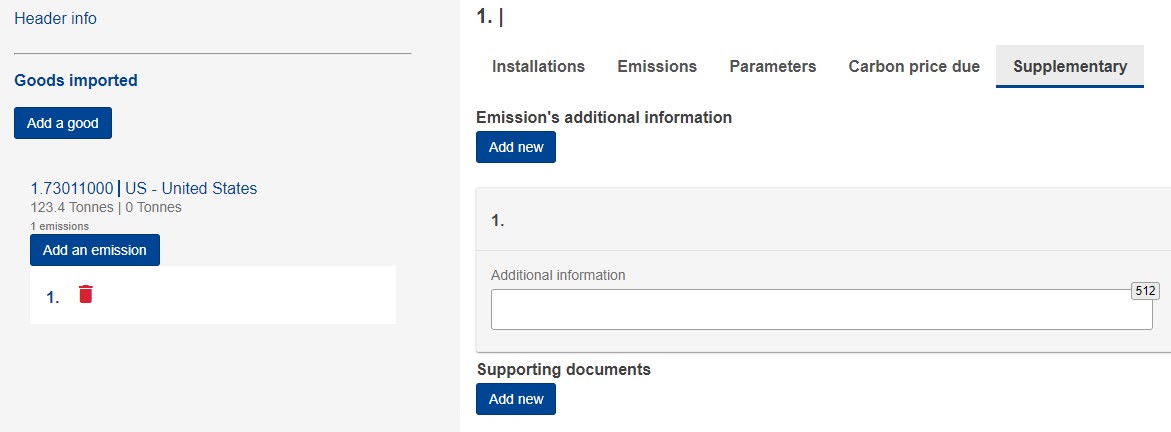
- Choose the “Supplementary” tab
- If needed, you can provide additional information under “Additional information”.
- If needed, you can add documents under “Supporting documents” by clicking on the button “Add new”.
- Note: If you haven’t provided actual emission data, give an account of what you have done to obtain the required data. In the field “Additional information”, provide justifications related to reported data or data gaps. Additional information may also be a description of production routes or other factors that make reporting difficult or impossible. If needed, add e.g. documents that show what you have done to obtain the emissions data under “Supporting documents”.
- In the top right corner, click on the button “Validate”.
- If you receive error messages, you can find the messages and guidance on what to do on the Commission’s website in the document “CBAM Quarterly Report structure (XLS format)” on the “Error Messages Glossary” tab.
- In the top right corner, click on the button “Save”.
4. Finish the report
- Choose “Header info” on the left side of the page.
- Choose the “Competent authority” tab
-
- Under “reference number”, the number “FI000032” should be displayed If the number is missing, notify this by email to cbam@tulli.fi
- Choose the “Signatures” tab
- You don’t need to fill in the field “Date of signature”.
- Enter the place of signature in the field “Place of signature”
- Enter your name in the field “Signature (Full Name)”
- In the field “Position of person signing”, enter your position in your organisation
- Tick the boxes “I certify that to the…” and “I conform that the data…”
5. Submit the report
- Validate the details in the report by clicking on “Validate” in the top right corner
- If you receive error messages, you can find the messages and guidance on what to do on the Commission’s website in the document “CBAM Quarterly Report structure (XLS format)” on the “Error Messages Glossary” tab.
- You can save the report as a draft by clicking on “Save as draft”
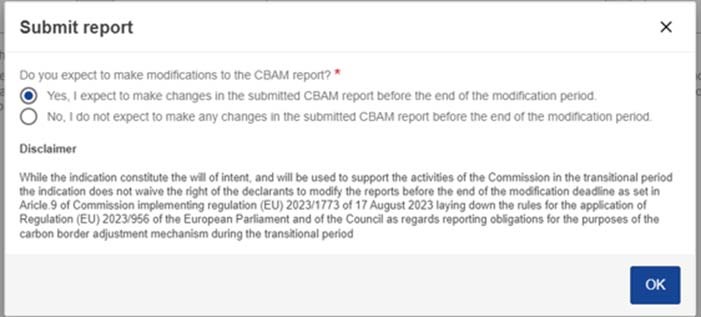
- When the report is ready to be submitted, submit it by clicking on “Submit”

6. Making subsequent modifications to the report
- If you wish to make modifications to your report later, before the end of the modification period, select “Yes, I expect to make changes…”. Otherwise, select “No, I do not expect to make any changes…”.
- You can find more information about making subsequent changes to reports on our CBAM web page under ”Obligation to report to the Commission – How”.
7. Proceed as follows if you have not obtained actual emissions data for CBAM reporting
When reporting emissions data for the period 1 July‒30 September 2024 and for the periods after it, you must provide the actual emissions data of the CBAM goods. The emissions data must be obtained from the producer of the goods.
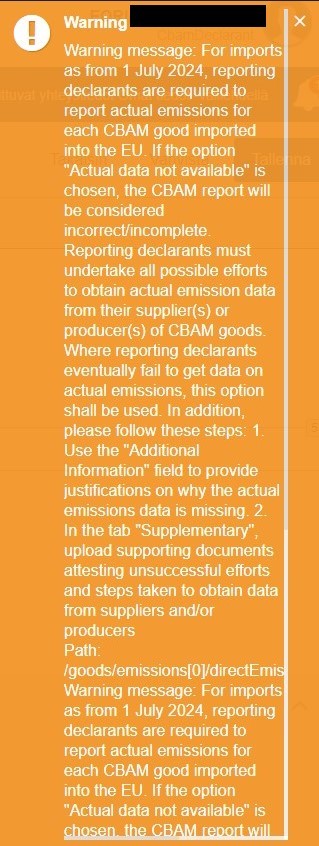
If you have not obtained the required emissions data within the specified time limit, the data should be added to the report later. You should always submit a report even if you do not have any actual emissions data. On your report, you should indicate that you do not have actual emissions data. In that case, you must provide additional information about the missing emissions data. You must also prove that you have taken the necessary steps to obtain the emissions data. Read more under “Missing emissions data – what do I do and what are the possible consequences”.
The instructions below will be amended based on notifications from the Commission. We will release information on any possible changes separately.
Enter the data in the Transitional Registry as follows:
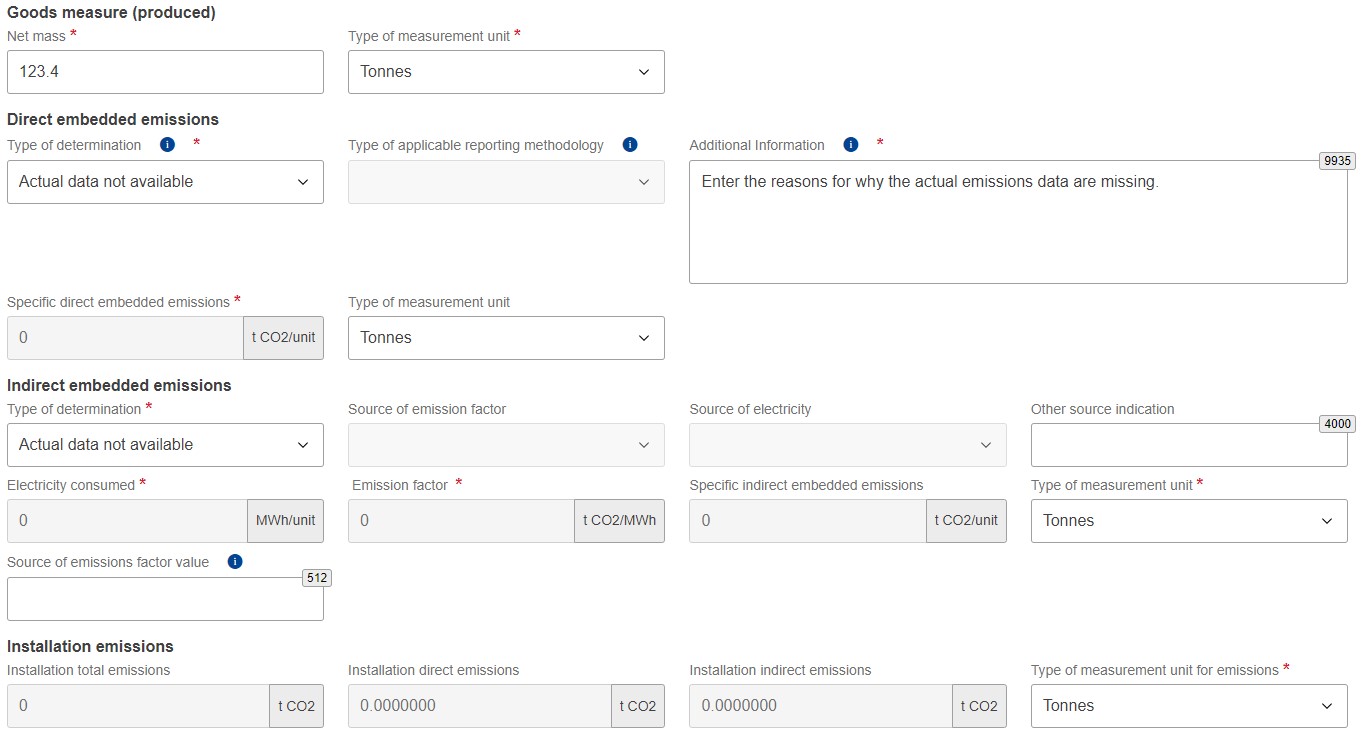
- Go to the “Emissions” tab.
- In the “Net mass” field, enter the net mass of the goods in tonnes.
- Under “Type of measurement unit”, select “Tonnes” as the measurement unit.
- Under “Direct embedded emissions”, in the field “Type of determination”, choose the alternative “Actual data not available”.
- In the field “Additional information”, enter the reasons for why the actual emissions data are missing.
- Under “Indirect embedded emissions”, in the field “Type of determination”, choose the alternative “Actual data not available”.
- You will receive a warning message on an orange background when you are submitting or confirming your report. The warning message does not prevent you from sending the report.
In the “Supplementary” tab, upload the documents showing the steps you have taken to obtain the emissions data.
8. How to use emissions data added by the producer to the CBAM Registry via the portal for non-EU installation operators
If the producer of CBAM goods has already submitted the emissions data to the CBAM Registry via the portal for non-EU installation operators, you can add the emissions data directly to your report. Add the data as follows:
- Make sure that you have informed the producer of the goods of your EORI number. Before you can obtain the emissions data from the Registry, the operator must first allow you access to the data.
- Make sure that you and the operator both use the same commodity code and country of production. If these details don’t match, the system can’t find the operator or the emissions data.
- Go to the “Installations” tab.
- Under “Country of production”, choose the country of production.
- Add the operator:
- Click on “Add new” under “The company name of the installation”.
- Click on “Search in Operators of Third Country Installations registry”. Select the correct operator from the registry and click on “OK”. The operator details are updated automatically on the page.
- Add the installation:
- Click on “Add new” under “Installation”.
- Click on “Search in Operators of Third Country Installations registry”. Select the correct installation from the registry and click on “OK”. The installation details are updated automatically on the page.
- Choose the “Parameters” tab.
- Under “Production method”, select the production method used. You can obtain the details of the production method from the operator.
- Choose the “Emissions” tab.
- Under “Goods measure (produced)”, in the field “Net mass”, enter the net mass of the goods in tonnes.
- Under “Type of measurement unit”, select “Tonnes” as the measurement unit.
- The emissions data are filled in automatically on the tab based on the earlier choices on the previous tabs.
- If you wish to edit the emissions data provided by the operator, click on “Edit” in the top right corner of the tab. In that case, read the instructions in section 3. “Add the goods and their emissions data” Please note that the submitter of the report remains responsible for the correctness of the report in all cases.